How to Draw Spells in A Stray Line
Notebook symbols, input options, and real-time battle habits for Taoyi's magic.
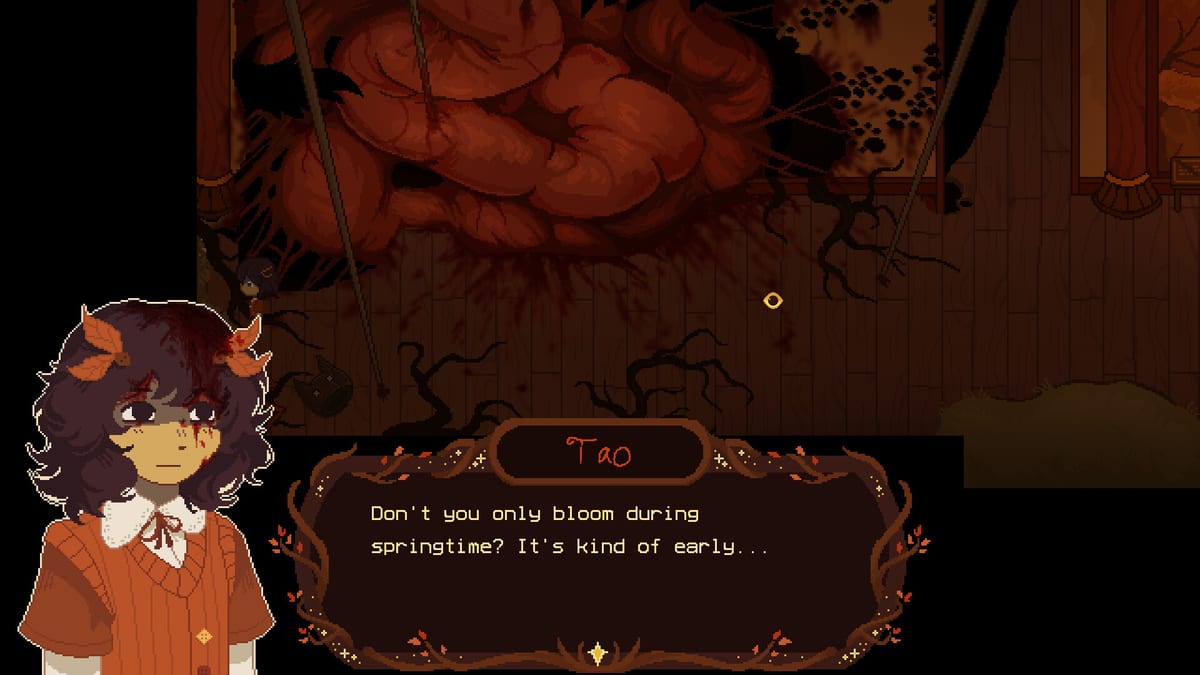
Magic in A Stray Line lives in a spell notebook where you draw symbols to cast spells — sometimes during calm story beats, often during real-time drawing battles while projectiles close in on Taoyi Feng. Sprout Haven ties this system to the game’s art themes: Taoyi’s household revolves around Atlas Feng, a painter and injured mage, so visual literacy is both narrative and mechanical. This guide teaches how to draw spells reliably on mouse, keyboard, touch, or drawing tablet, without inventing unreleased symbol catalogs before the Chapter 1 demo (target August 2026).
Read How to Play first if you need the broader adventure loop. Return here whenever a new chapter adds symbols or when you prepare for the one boss per chapter structure outlined in How to Beat Bosses.
How the spell notebook works
When the notebook opens, the game expects recognizable symbol shapes — lines, curves, loops, or rune-like strokes depending on what the chapter taught. Drawing is not cosmetic flair; completed shapes trigger defensive barriers, counters, or cleansing effects against threats tied to the story’s body-horror tone.
Two contexts matter:
- Scripted tutorials — Safe rooms where missing a stroke only costs a retry prompt. Use these to learn stroke order without HP pressure.
- Combat encounters — The notebook overlays active danger. Projectiles continue moving while you draw, so completion speed and accuracy both count.
Sprout Haven has not published a full public glyph chart for unreleased chapters. Treat promotional screenshots and trailer frames as shape inspiration, not exhaustive lists. After demo launch, annotate confirmed symbols in your own notes rather than expecting this page to leak every secret combo.
Input devices compared
Official support covers mouse and keyboard (primary), touch, and drawing tablets.
Mouse
Most players will default here. Tips:
- Use a moderate DPI — hyper-fast cursor movement overshoots tight corners on symbols.
- Draw from the elbow, not just the wrist, for smoother curves on larger shapes.
- Click-drag versus click-point styles depend on implementation; test both in the first tutorial.
Keyboard
Keyboard handles menus and possibly notebook toggles, but symbol drawing still maps to pointer motion unless the demo adds stroke shortcuts. Keep one hand on the mouse or pen while the other handles cancel or undo keys if available.
Touch
Touchscreens suit short sessions and direct tracing. Dry your screen, disable palm rejection issues at the OS level, and practice lifting cleanly between strokes so the game registers separate lines.
Drawing tablet
Tablets mirror Atlas’s painter fantasy and can smooth arcs. Map pen pressure if the game ignores it — do not force pressure features the demo may not use. Align the tablet active area to the notebook window to avoid coordinate drift.
Stroke quality fundamentals
Until dataminers or official guides publish exact hitboxes, assume games like this judge:
- Closure — Loops must close near their start point.
- Direction — Some symbols may require specific stroke order; tutorials usually demonstrate order explicitly the first time.
- Scale — Absurdly tiny shapes may fail recognition; fill the provided template space.
- Time — Combat waits only so long before penalties or hits land.
When a symbol fails, watch the ghost overlay if the game provides one — many drawing systems flash the expected path briefly. Repeat that path at half speed before accelerating.
Practice drills you can run after launch
Use non-hostile notebook moments to build muscle memory:
- Slow trace — Follow tutorial outlines three times without looking away from the stroke path.
- Eyes-up trace — Glance at the threat lane briefly, then complete the symbol from memory to simulate combat attention split.
- Device swap — Repeat the same symbol on mouse and tablet in one session to see which device fails under stress.
- Fatigue check — Practice after a long exploration segment; tired hands reveal whether your sensitivity settings hold up.
Link these drills to story pacing in How to Complete Chapter 1 once you know where safe rooms sit in the demo.
Real-time battle drawing
Projectile battles demand prioritization:
- Identify the highest-threat projectile — closest, fastest, or the one tied to a telegraphed boss phase.
- Select the counter symbol you learned for that threat type; do not experiment with untested doodles mid-fight.
- Finish minimal viable strokes — partial recognition may fail; commit to clean completion over artistic flair.
- Reset calm — if panic scribbling begins, pause breathing, cancel invalid strokes, and restart the shape rather than stacking errors.
Boss fights at chapter ends compress everything — read How to Beat Bosses for phase-wide habits even when we omit unreleased attack names.
Connecting spells to story and art
Symbols likely echo motifs in Atlas’s paintings, apartment decor, or neighbor artifacts connected to Mr. Ilya and The Tube. When exploration highlights a recurring geometric motif, sketch it on paper; it may reappear as a notebook requirement later. This is inference, not a confirmed puzzle solution — but adventure games routinely teach glyphs through environmental art.
Found-family scenes are not downtime filler. Winslow or Atlas may mention a symbol’s name before the notebook labels it; dialogue logs help if the game provides them.
Accessibility and comfort
Real-time drawing can exclude players with tremor or chronic pain. Watch demo options for:
- Input remapping
- Timing assists or slowed projectile modes
- Alternative recognition tolerance
If none appear at launch, voice feedback on official Discord helps studios prioritize patches. Single-player adventures sometimes add assist modes post-demo.
Mistakes that waste notebook time
- Drawing decorative flourishes outside the recognized path.
- Switching input devices only during boss attempts.
- Skipping tutorial replays after a patch changes recognition.
- Ignoring content warnings and pushing through dissociation — shaky focus ruins symbol accuracy; see Getting Started for mature theme notes.
Related guides
- How to Play — switching between exploration and combat
- How to Beat Bosses — chapter finale pressure
- How to Complete Chapter 1 — demo milestones
- Guides Hub — full guide index
Wishlist and trailer updates stay on Steam and the Kickstarter page. This guide updates when Sprout Haven documents symbol names publicly.
Frequently Asked Questions
Quick answers drawn from what players ask most.
Do I need artistic skill to draw spells?
No. The notebook expects **recognizable symbol shapes**, not gallery-quality art. Follow tutorial templates and prioritize clean strokes over flair.
Does a drawing tablet give an advantage?
Tablets can smooth curves for some players, but mouse and touch are fully supported. Use whichever device keeps symbols accurate under real-time pressure.
Are spell symbols the same in every chapter?
Expect new symbols as chapters progress. The demo should teach a starter set; later chapters will likely expand the notebook — revisit this page after each release.
Can I practice spells outside combat?
Tutorial and story scenes typically offer safer practice windows. Run drills there before boss fights described in How to Beat Bosses.
Where do spells fit in the story?
Magic connects to Taoyi's household — especially Atlas's mage background and the game's art themes. Exploration clues and dialogue often foreshadow which symbols matter next.